
1. Select "Top Up (Bank
Transfer)"

2. Select the bank you want to Transfer.
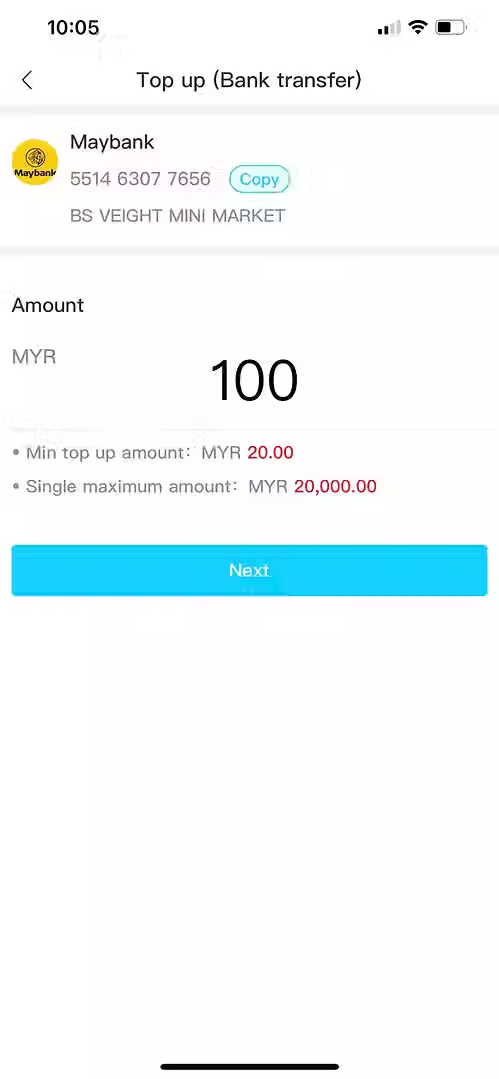
3. Key in the Top Up Amount.

4. Transfer the balance to the corresponding bank account and keep the receipt for the next step.

5. Click on the blank column to upload your receipt.

6. Wait for approval.

1. Select"Instant Top Up".

2. Select the bank you want to Transfer.

3. Key in the Top Up Amount.

4. Insert your bank account id and password.

5. Once received the OTP sent by bank, key in.

6. Reload successfully.

1. Click “Me”.
2.Click “Recharge / Withdraw”.

3. Click “Switch to USD Currency”.
(If it's already in USD, there's no need to exchange.)

4. Click “USDT Recharge”.

5. Enter “Top Up Amount”.
6. Click “Next”.

7. Select “Same Payment Zone Network”.
8. Copy “Amount Button”.
9. Use “Virtual Currency Platform to Scan QR Code”.
10. Copy “USDT Address Button”.
*Customers can choose to use scan QR code or copy the USDT address to transfer to the virtual platform.
*A new address is generated for each recharge round.

11. Actual “Top Up Amount”.
12. Actual “Received Amount”